

Key Takeaways
- In the USB vs WiFi printing choice, USB wins on reliability and simplicity, while Wi-Fi wins on convenience and sharing.
- USB is best when one computer sits beside the printer and you never want it to drop offline.
- Wi-Fi is best when several people or devices need to print, or the printer lives in another room.
- You do not have to pick just one; many printers happily run both at the same time.
- If Wi-Fi keeps failing during setup, a USB cable is the fastest way to get printing today and switch to wireless later.
Standing in front of a new printer with a cable in one hand and a Wi-Fi password in the other is a small but real decision. Plug it in, or send it wireless? I have set up printers both ways for home offices, busy households, and small businesses, and each choice has a clear sweet spot. USB is dead simple and rock solid, but it ties the printer to one desk. Wi-Fi frees the printer for the whole house but adds a few things that can go wrong. By the end of this guide you will know exactly which fits your setup, and how to switch later if your needs change.
The Short Answer
If one computer sits right next to the printer and only that computer needs to print, use USB. It is the most reliable connection you can make, and there is almost nothing to configure. Plug it in, and it works.
If more than one person, phone, laptop, or tablet needs to print, or the printer lives in a different room, use Wi-Fi. You trade a small amount of reliability for the freedom to print from anywhere in your home or office. For most families and small teams, that trade is well worth it.
How USB Printing Works
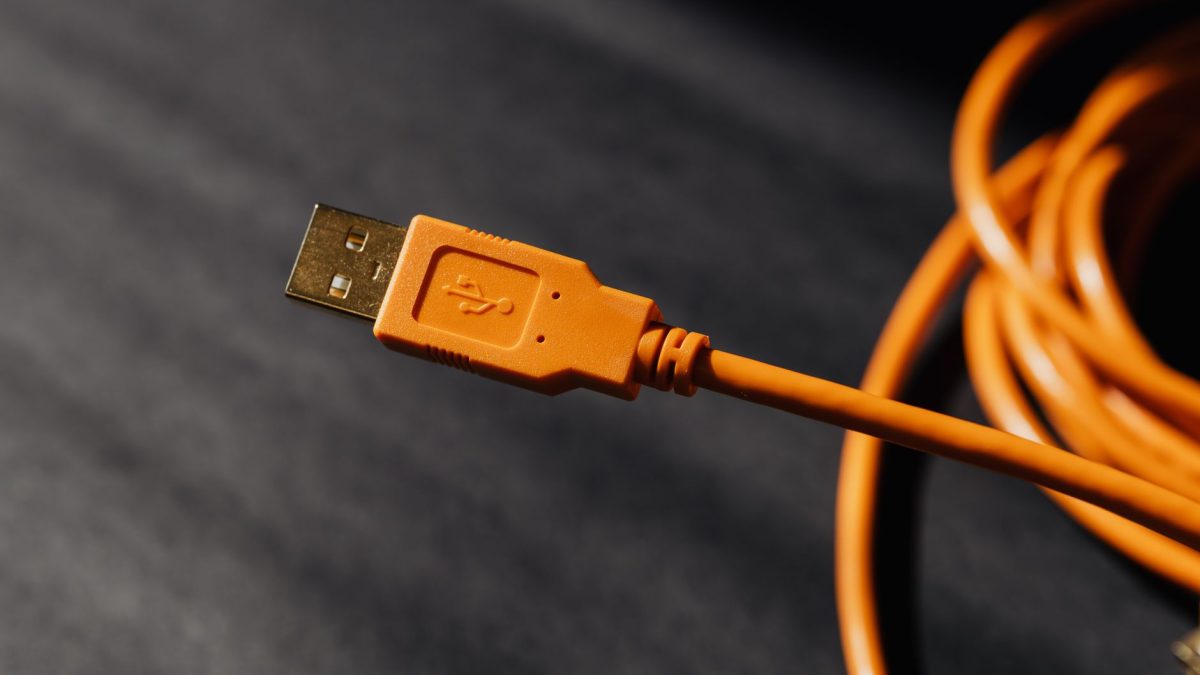
A USB connection is a direct wire between your computer and the printer. There is no network, no router, and no password involved. Your computer talks straight to the printer, which is why this method is so dependable.
Because nothing sits between the two devices, USB rarely fails. There is no signal to drop, no IP address to change, and no router setting to break the link. When I want a printer that simply works every single time without fuss, I reach for a cable first.
The Strengths of USB
- Reliability. A wired link does not drop off, so you rarely see the dreaded “printer offline” message.
- Simplicity. Plug in the cable and your computer usually installs the printer on its own within a minute.
- Speed for big jobs. A wire moves data quickly, which helps with large, image-heavy documents.
- Security. Nothing travels over your network, so there is no wireless path for anyone to snoop on.
The Limits of USB
The catch is that only the connected computer can print. If your partner, your kids, or your phone want to print, they are out of luck unless you copy files over first. The printer is also anchored within a cable’s length of the computer, usually a few feet at most, which limits where you can put it.
Tip: Most modern printers use a USB-B (square-ended) cable that is often not included in the box. Check before setup day so you are not stuck. A standard 6-foot cable is plenty for a desktop setup, and shorter is fine if the printer sits right next to the machine.
How Wi-Fi Printing Works
Wi-Fi printing puts the printer on your home or office network, the same way your phone and laptop join it. Once the printer is on the network, any device on that network can send it a job, from any room. There is no cable tying it down.
This freedom is why wireless has become the default for most people. You can tuck the printer in a closet, a corner, or a shared hallway, and everyone still reaches it. If you have not set this up yet, our step-by-step guide to connecting a printer to Wi-Fi walks through every reliable method.
The Strengths of Wi-Fi
- Sharing. Every phone, tablet, and computer on the network can print without any cables.
- Placement freedom. The printer can live anywhere with a decent signal, not just beside a desk.
- Mobile printing. You can print straight from a phone using built-in tools, no computer needed.
- Tidiness. One less cable running across your desk or floor.
The Limits of Wi-Fi
Wireless adds a few more moving parts. A weak signal, a router that hands out a new address, or a sleepy printer can all cause it to vanish from your device list. These issues are fixable, but they do come up more often than with a wire.
The most common wireless headache is a printer that connects fine one day and shows as offline the next. If that sounds familiar, our plain guide to what “printer offline” really means explains the cause, and the walkthrough on getting your printer back online in Windows covers the quick fixes.
USB vs Wi-Fi Printing: Side by Side
Sometimes it helps to see the two options lined up. This table sums up how USB and Wi-Fi compare on the things people actually care about, so you can match a column to your own situation.
| What matters to you | USB printing | Wi-Fi printing |
|---|---|---|
| Reliability | Excellent, rarely drops | Good, but can drop off |
| Ease of setup | Plug and print | A few steps, network needed |
| Number of users | One computer only | Everyone on the network |
| Printer placement | Beside the computer | Anywhere with signal |
| Print from a phone | Not directly | Yes, easily |
| Ongoing upkeep | Almost none | Occasional fixes |
There is no universally correct answer here. A solo freelancer at one desk and a family of five with three laptops will land on different sides of this table, and both are right for their needs.
Which One Should You Choose?
To make the decision quick, walk through these questions in order. The first “yes” usually points you to the right answer for your setup.
- Will only one computer ever print, and it sits next to the printer? If yes, choose USB for its simplicity and reliability.
- Do phones, tablets, or multiple computers need to print? If yes, choose Wi-Fi so everyone can reach it.
- Does the printer need to live in another room? If yes, Wi-Fi is the practical choice.
- Has Wi-Fi setup already failed repeatedly? If yes, start with USB today and add Wi-Fi later once things calm down.
- Do you want both convenience and a reliable backup? If yes, use both at once, which most printers fully support.
When I set up a home office for a friend last winter, we did exactly that last option. We connected the main desktop by USB for daily work and joined the printer to Wi-Fi so her laptop and phone could print too. Months later she told me she had never once seen it go offline, because the USB link always had her back.
You Can Use Both at the Same Time
Here is the part many people miss: USB and Wi-Fi are not an either/or choice. Nearly every modern printer accepts a USB cable and a wireless connection at once, and each acts as an independent path to the same machine.
This gives you the best of both worlds. Your main computer prints over the reliable wire, while the rest of the household prints over Wi-Fi. If the wireless ever acts up, the wired computer keeps working, giving you a built-in backup while you sort things out.
Warning: Do not download drivers from random search results when adding a printer either way. These sites often bundle unwanted software. Use only your computer’s built-in setup or your printer maker’s official support page, which installs the correct driver for both USB and Wi-Fi automatically.
Making Wi-Fi as Reliable as USB
If you love the convenience of Wi-Fi but worry about it dropping, a few habits close most of the reliability gap. The single biggest one is giving the printer a fixed address so your computer always knows where to find it.
By default, your router can hand the printer a new address over time, which is what makes it suddenly appear offline. Our guide to assigning a static IP to your printer fixes this cleanly. It also helps to keep the printer within good signal range and to turn off aggressive deep-sleep timers.
If your printer still keeps vanishing, work through the common causes in our list of reasons a printer keeps dropping off Wi-Fi and check whether any router settings are quietly breaking your printer’s Wi-Fi. For the full chain from computer to router to printer, our complete guide to printer connection problems ties everything together.
If you want to understand the underlying technology behind the wireless option, the neutral overview of Wi-Fi on Wikipedia explains the bands and standards in plain terms. You can also read more about how the PrinterDojo team tests the advice we share.
Frequently Asked Questions
Is USB or Wi-Fi printing faster?
For large, image-heavy documents, USB is usually a touch faster because a wire moves data quickly with no network overhead. For everyday text pages, the difference is tiny and you likely will not notice it. Wi-Fi speed also depends on your signal strength, while a USB cable stays consistent every time.
Can I use USB and Wi-Fi at the same time?
Yes, nearly all modern printers support both connections at once. Your main computer can print over the USB cable while everyone else prints over Wi-Fi. Each path works independently, so the wired link acts as a reliable backup if the wireless ever drops off. This setup gives you convenience and dependability together.
Why does my Wi-Fi printer keep going offline but USB never does?
A wired USB link has no signal to lose and no address to change, so it stays put. Wi-Fi relies on a steady signal and a stable network address, both of which can shift. Assigning a static IP, improving the signal, and disabling deep sleep make Wi-Fi behave far more like a reliable wired connection.
Do I need Wi-Fi to print from my phone?
To print wirelessly from a phone, yes, your printer usually needs to be on Wi-Fi so the phone can reach it. USB cannot connect a phone to a printer for normal printing. Some printers also offer Wi-Fi Direct, which lets a phone connect straight to the printer without a home network at all.
Is USB printing more secure than Wi-Fi?
USB keeps print data on a direct wire, so nothing travels over your network, which is inherently private. Wi-Fi printing is still safe on a properly secured home network with a strong password. For most homes and small offices, either option is secure enough, though USB has a slight edge for highly sensitive documents.
The Bottom Line
Choosing between USB and Wi-Fi printing comes down to one question: does the printer serve one desk or the whole household? USB gives you rock-solid reliability for a single computer, while Wi-Fi gives everyone the freedom to print from anywhere. And since most printers run both at once, you rarely have to give up one to get the other. Whichever you choose, you now know how to make it dependable. If you would like a simple starting point, our wireless printer setup checklist for any brand is a friendly companion. No pressure, just calm, practical help whenever you need it.


